

Coming soon. The Perplexity webhook integration is not yet available. This page describes the planned setup so you can confirm your Perplexity plan and seat count ahead of time.
What it adds
Perplexity activity pushed by the audit log webhook is attributed to the user who ran it and threaded into the same traces, analytics, and inventory as the rest of your AI activity, so Perplexity usage can be investigated alongside everything else Origin captures.How it works
The Perplexity webhook is push-based, not pull-based: Origin issues a unique webhook URL and bearer token for your tenant, and Perplexity uses them to send audit log events to Origin as they happen. There is nothing to export and no schedule to manage on the Origin side.Minimum Perplexity plan required
Perplexity’s audit log webhook is an Enterprise-tier feature, and it is gated by plan and seat count on Perplexity’s side:
If your organization has fewer than 50 Enterprise Pro seats, you’ll need to upgrade at least one seat to Enterprise Max before Perplexity will expose audit log webhook configuration to your org admins.
Before you start
Make sure you have the following before beginning setup:- A Perplexity Enterprise organization that meets the plan and seat requirements above.
- A Perplexity org admin, who can configure the webhook in Perplexity’s organization settings.
- An Origin tenant admin, who can generate the webhook URL and bearer token in the Origin console.
Setup
1
Generate the webhook URL and bearer token in Origin
- Sign in to the Origin console as an admin.
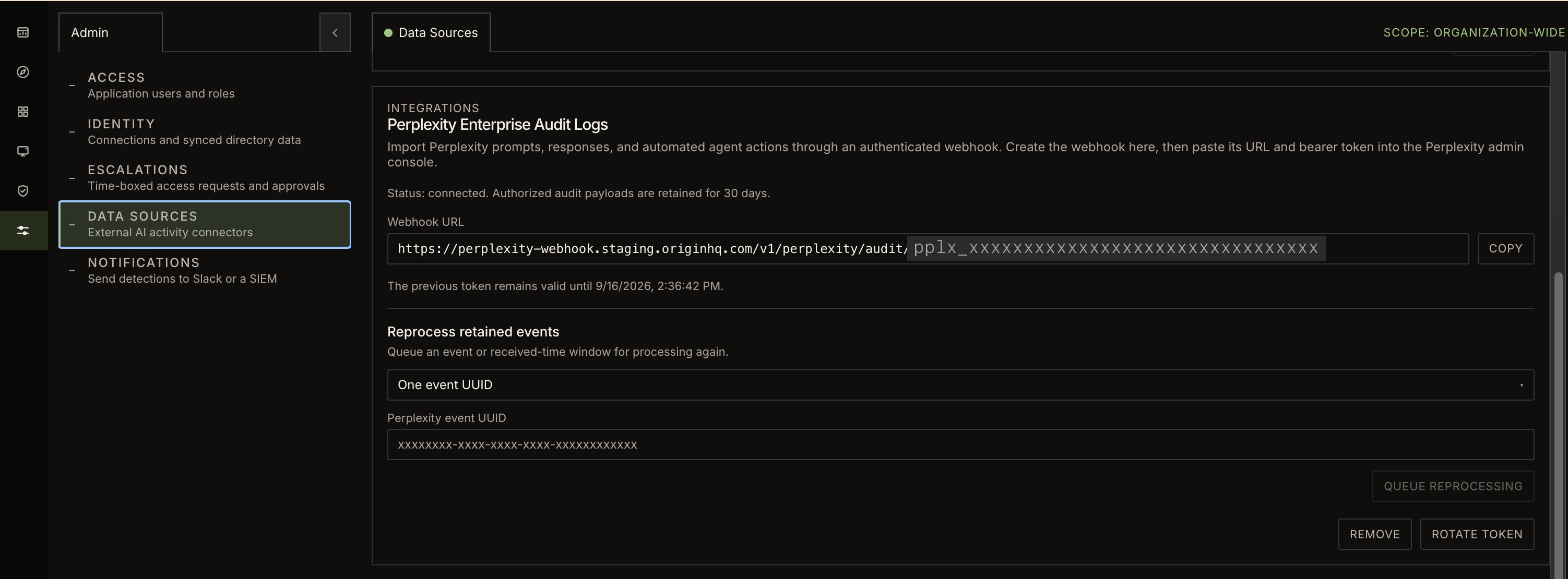
- Open Admin → Data Sources.
- Find Perplexity in the list of data sources.
- Copy the webhook URL.
- Click Rotate Token to generate a bearer token.
- Copy the token right away and store it somewhere safe — Origin shows it only once, so take a screenshot or otherwise save both values before leaving the page.
2
Add the webhook to Perplexity
- Sign in to perplexity.ai as an org admin.
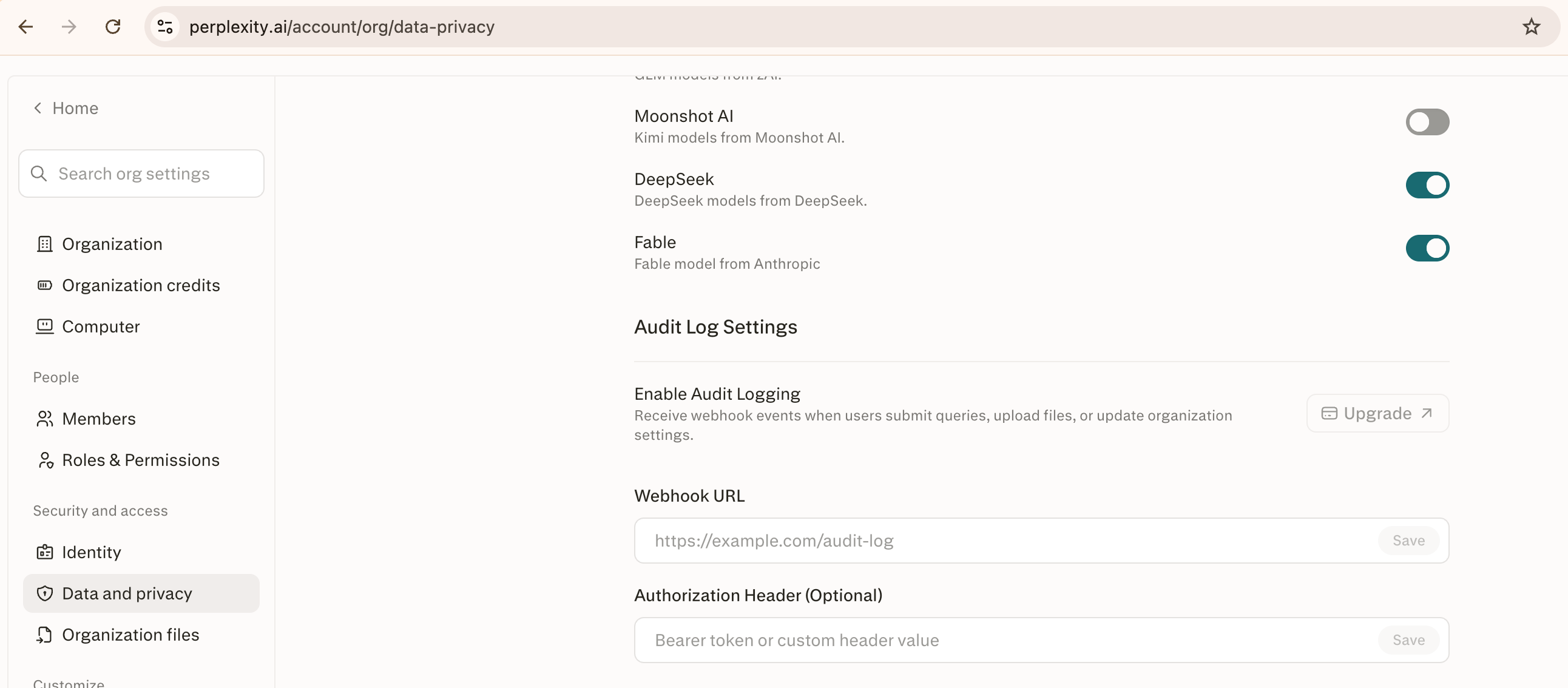
- Open your organization settings, under Data and Privacy → Audit Log Settings.
- Paste the webhook URL and bearer token you copied from Origin into the corresponding fields.
-
Save the settings.
What to expect after connecting
Once both sides are configured, Perplexity audit log events flow into Origin as they happen and appear in your traces, analytics, and inventory alongside the rest of your captured AI activity. No further setup is required.Changing or removing the connection
- Rotate the token: Click Rotate Token again in Origin’s Data Sources settings, then paste the new token into Perplexity’s Data and Privacy settings. The old token stops working as soon as you rotate.
- Disconnect: Remove the webhook URL and token from Perplexity’s Data and Privacy settings. New activity stops arriving in Origin; data already captured is unaffected.
Troubleshooting
What Origin accesses
- Origin only receives audit log events that Perplexity sends to the webhook — it does not query or pull anything from Perplexity directly.
- The bearer token authenticates incoming requests to Origin’s webhook endpoint; it does not grant Origin any access back into your Perplexity organization.
- The token is shown only once when generated or rotated, and Origin does not display it again afterward.
This integration is coming soon. Setup steps, required plan, and field names are subject to change before general availability.