

3 latest alongside the total number of published builds, and a Show all versions button expands the list to every build ever published. A search box filters on platform, architecture, format, version, or checksum.
What the table shows
Each row has its own Download button.
Which package to use
See Windows Install for the difference in more detail, and macOS Install for the
.pkg walkthrough.
Verifying a download
The SHA256 column carries the digest of each package. Compare it against the file you downloaded before deploying it to a fleet:- macOS
- Windows
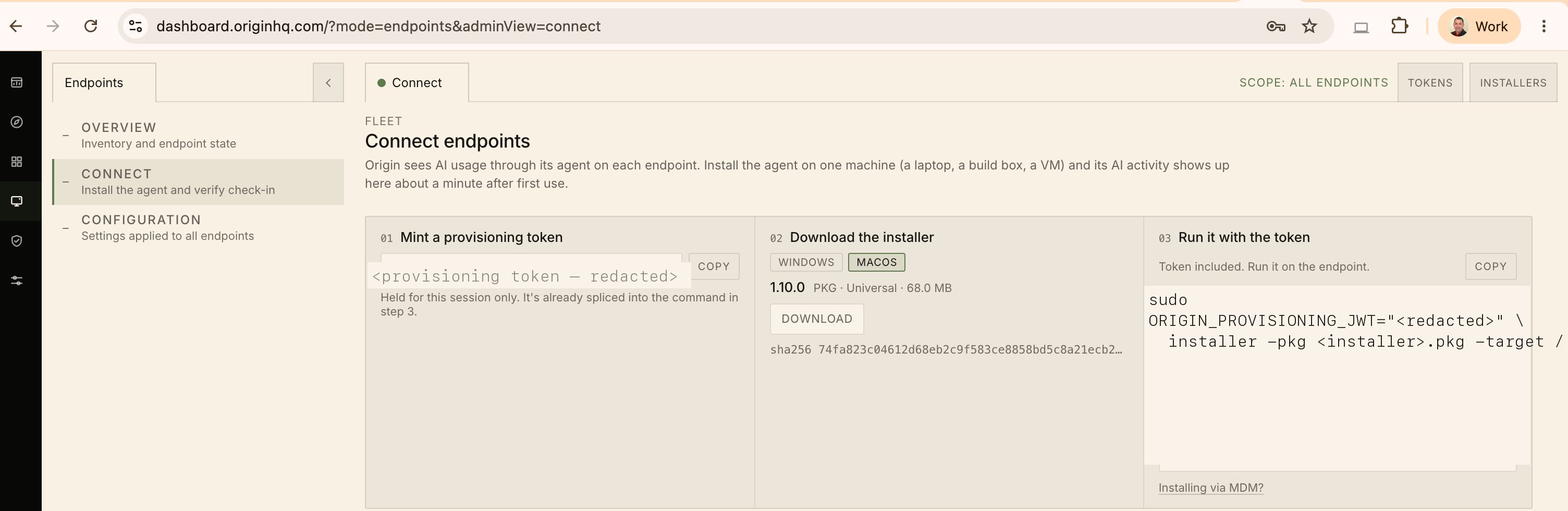
You also need a provisioning token. Installers and Provisioning Tokens are two separate views, both reached from Endpoints → Connect. The package downloaded here cannot register an agent on its own — mint a token first (click Tokens, or use the Mint a provisioning token step on the Connect page). See Provisioning Tokens.
Next steps
macOS Install
Run the
.pkg installer and register the agent.Windows Install
Deploy the MSI silently with a provisioning JWT.
MDM Overview
Push the agent fleet-wide via Jamf, Intune, or Tanium.
Provisioning Tokens
Create the token each agent needs to register.