

Managed Skills roll out using the same waves and schedule, but you deploy them from Skills, not from this page.
How staged upgrades work
A release reaches your endpoints in two stages:- Origin’s stage. Origin first widens the release across all tenants on its own schedule.
- Your stage. Once Origin has finished rolling the release out everywhere, your waves widen it across your endpoints.
- Rollout order is reshuffled every release. Each endpoint’s place in line is computed from its endpoint ID and the release, so no endpoint is always first unless you pin it with an override.
- The wait is an observation window, not a health check. A wave advances when its time is up, whether or not endpoints have reported.
- Pause vs. Hold. Pause stops new waves from opening. Hold also stops delivery to endpoints already admitted. Neither one removes software that is already installed.
Starting, declining, and holding releases
On the Releases tab, Available updates lists each component with its version, audience (for exampletenant main), state, endpoints eligible/active, and wave mode.
- Start opens the first wave of a release that is waiting for your approval.
- Decline rejects the release so it does not reach your endpoints.
- Hold stops the release, including delivery to endpoints already admitted.
- For Content Updates, Hold content delivery stops content updates from being delivered.
Set upgrades to automatic or manual
Release policy is set per component.1
Open the policy settings
Go to Endpoints > Artifact Rollouts and select the Per Component – Policy and tracks tab.
2
Choose a component
In Component, select the component the policy applies to (for example, Origin Agent or Content updates). Your wave schedule and overrides are not affected by this choice.
3
Set the release policy
Under Release policy, set Minor releases and Major releases independently:
- Automatic – when Origin finishes rolling a release out to the fleet, it starts moving through your endpoints on its own.
- Wait for me (manual) – the release waits on the Releases tab until you click Start.
4
Save
Click Save policy.
Minor releases vs. major releases
Minor and major releases are configured separately because major releases are the ones most worth holding. This lets you, for example, let minor releases flow automatically while requiring approval for major releases so you can validate them first.Define waves
Waves control how quickly a release spreads across your endpoints once it reaches your tenant.Global wave schedule
1
Open the schedule
Go to Endpoints > Artifact Rollouts and select the Your Fleet – Schedule and overrides tab.
2
Choose what it applies to
In Applies to, leave Every component selected to set one schedule for Agent, Content Updates, and Managed Skills together, or pick a single component.
3
Add waves
Click Add wave for each wave and set:
- Reaches – the share of endpoints the wave covers.
- Then waits – the observation window before the next wave opens.
4
Save
Click Save schedule. Saving affects releases published afterwards, not releases already moving.
Per-component schedules
Under Rollout schedule, each component card shows the waves it currently uses. From a card you can:- Use the global schedule – switch the component back to the global schedule.
- Edit this schedule – load the component’s schedule into the editor above.
- Give this component its own schedule – set a schedule that applies only to this component.
Overrides
Overrides fix an endpoint’s place in the rollout instead of letting it reshuffle each release. Use them so a machine you watch closely always goes first, or a fragile one always goes last. Overrides apply to every component.- Endpoint override – search by hostname, select the endpoint, then choose a Track and click Assign track, or enter a Wave number and click Assign wave.
- Directory group override – select a directory and group from your synced directories, then assign a track or wave. Membership decides rollout order, and endpoints joining or leaving the group pick up the rule on the next sync.
Wave number is a position in the schedule, counting from 1, not a percentage. An endpoint set to wave 2 joins when the second wave opens. If a component has fewer waves, the endpoint joins its final wave.
Tracks
Every endpoint sits on one of two tracks:- Main – where every endpoint is unless you move it. Releases arrive under your release policy and spread wave by wave.
- Preview – an opt-in group that receives a release ahead of Main, all at once with no waves, so you can test it against your own software first. Preview is early relative to your other endpoints only; a release reaches Preview after Origin has finished rolling it out across the fleet.
View agent version details for an endpoint
To see where a specific endpoint stands in a rollout:- Go to Endpoints > Overview.
- Select the endpoint in the list to open its detail panel.
- Scroll to the Update rollout card.
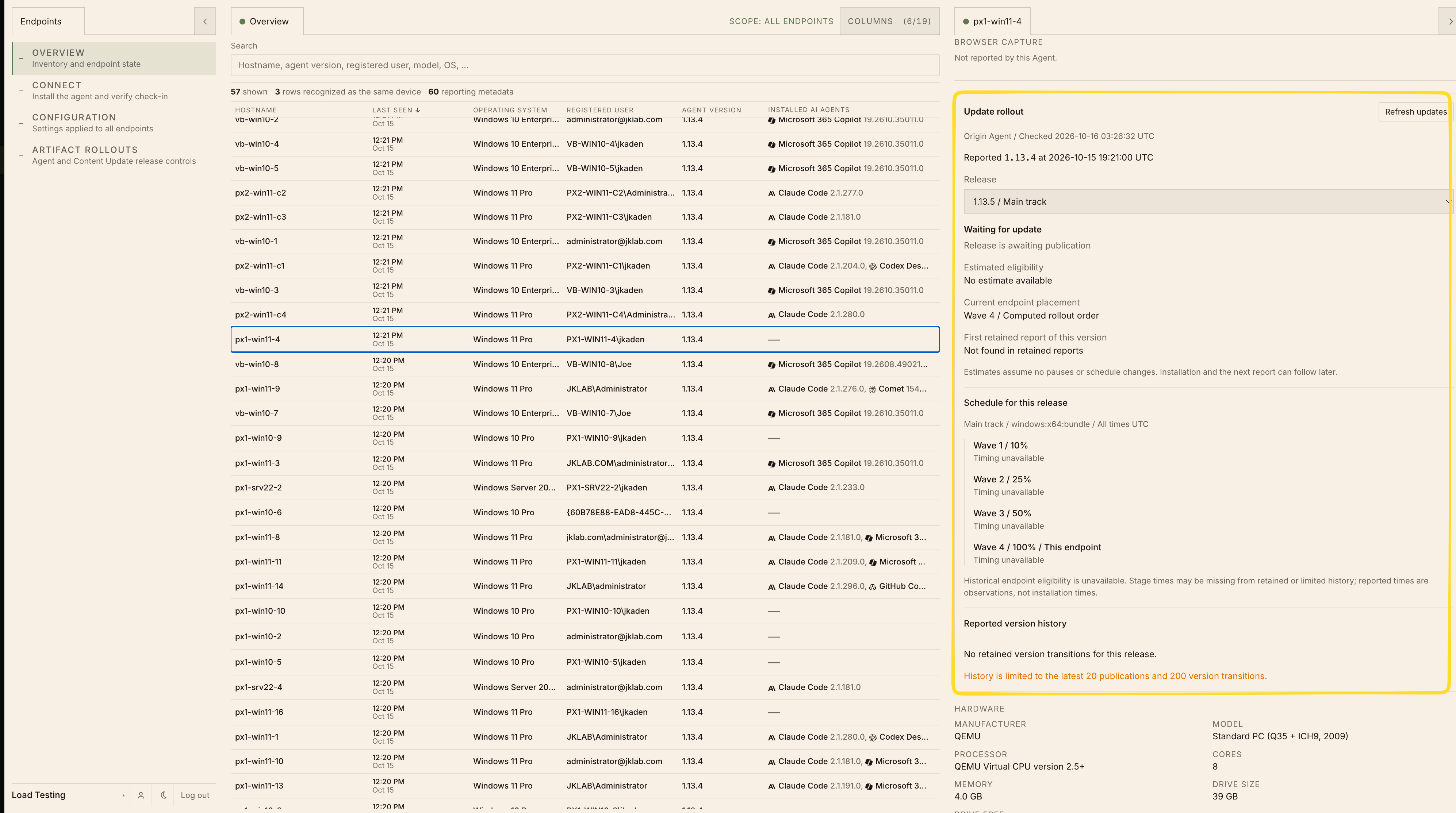
The Update rollout card in the endpoint detail panel
Click Refresh updates to re-check the endpoint’s rollout state.
Estimates assume no pauses or schedule changes. Reported times are observations, not installation times, and installation plus the next report can follow later. History is limited to the latest 20 publications and 200 version transitions.