> ## Documentation Index
> Fetch the complete documentation index at: https://docs.originhq.com/llms.txt
> Use this file to discover all available pages before exploring further.
# Download Origin Agent Installers
> The Installers view lists every published Origin agent build for macOS and Windows, with format, version, size, and SHA256 checksum for verification.
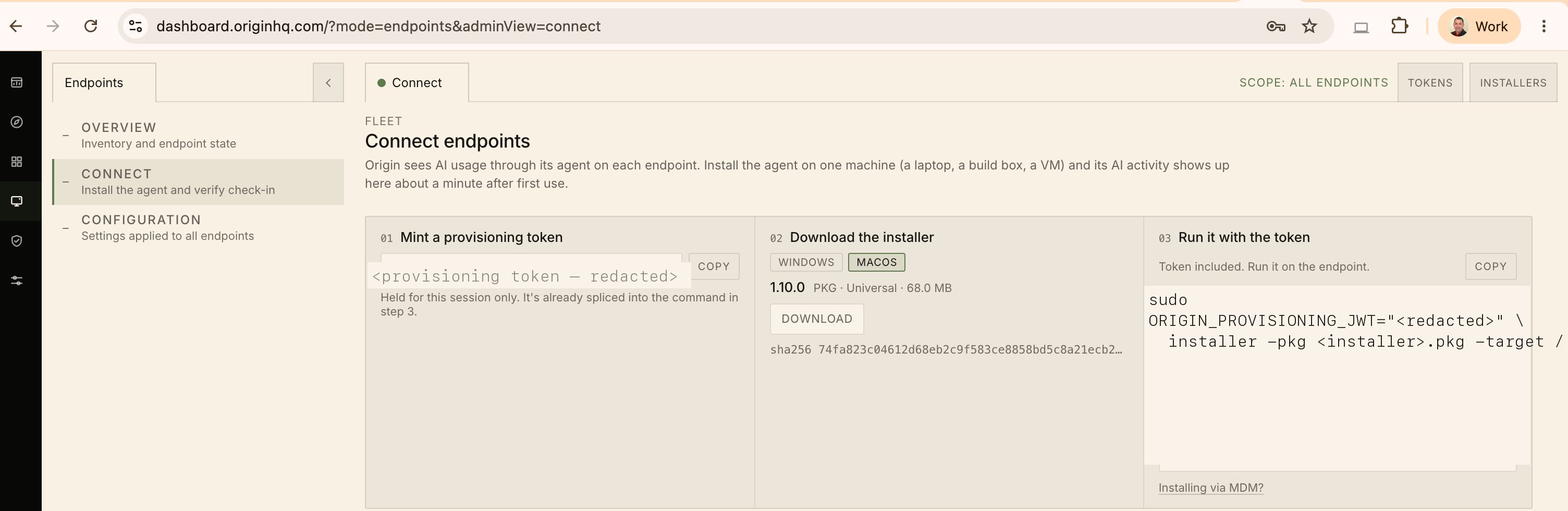
The **Installers** view is where you download the Origin agent packages. Open it from **Endpoints → Connect**, then click **Installers** in the top-right of the panel — or [jump straight there](https://dashboard.originhq.com/?mode=endpoints\&adminView=installers).
 By default the view shows the **three latest builds** — one per platform and format. A counter above the table reads `3 latest` alongside the total number of published builds, and a **Show all versions** button expands the list to every build ever published. A search box filters on platform, architecture, format, version, or checksum.
## What the table shows
| Column | Description |
| ---------------- | ------------------------------------- |
| **Platform** | macOS or Windows |
| **Architecture** | Universal for macOS; x64 for Windows |
| **Format** | PKG, MSI, or EXE |
| **Version** | Agent version |
| **Published** | Date and time the build was published |
| **Size** | Download size |
| **SHA256** | Digest for verifying the download |
Each row has its own **Download** button.
## Which package to use
| Platform | Format | Use it for |
| -------- | ------- | -------------------------------------------------------------------------------------------------------------- |
| macOS | **PKG** | Every macOS install — manual and MDM alike. |
| Windows | **MSI** | MDM and software-distribution tooling (Intune, SCCM). Requires the Visual C++ redistributable already present. |
| Windows | **EXE** | Ad-hoc and one-off installs. Detects and installs the Visual C++ redistributable automatically. |
See [Windows Install](/getting-started/windows-installation) for the difference in more detail, and [macOS Install](/getting-started/macos-installation) for the `.pkg` walkthrough.
## Verifying a download
The **SHA256** column carries the digest of each package. Compare it against the file you downloaded before deploying it to a fleet:
```bash theme={null}
shasum -a 256 Origin.pkg
```
```powershell theme={null}
Get-FileHash -Algorithm SHA256 .\origin-installer-windows-x64.msi
```
**You also need a provisioning token.** Installers and Provisioning Tokens are two separate views, both reached from **Endpoints → Connect**. The package downloaded here cannot register an agent on its own — mint a token first (click **Tokens**, or use the **Mint a provisioning token** step on the Connect page). See [Provisioning Tokens](/getting-started/provisioning-tokens).
## Next steps
Run the `.pkg` installer and register the agent.
Deploy the MSI silently with a provisioning JWT.
Push the agent fleet-wide via Jamf, Intune, or Tanium.
Create the token each agent needs to register.
By default the view shows the **three latest builds** — one per platform and format. A counter above the table reads `3 latest` alongside the total number of published builds, and a **Show all versions** button expands the list to every build ever published. A search box filters on platform, architecture, format, version, or checksum.
## What the table shows
| Column | Description |
| ---------------- | ------------------------------------- |
| **Platform** | macOS or Windows |
| **Architecture** | Universal for macOS; x64 for Windows |
| **Format** | PKG, MSI, or EXE |
| **Version** | Agent version |
| **Published** | Date and time the build was published |
| **Size** | Download size |
| **SHA256** | Digest for verifying the download |
Each row has its own **Download** button.
## Which package to use
| Platform | Format | Use it for |
| -------- | ------- | -------------------------------------------------------------------------------------------------------------- |
| macOS | **PKG** | Every macOS install — manual and MDM alike. |
| Windows | **MSI** | MDM and software-distribution tooling (Intune, SCCM). Requires the Visual C++ redistributable already present. |
| Windows | **EXE** | Ad-hoc and one-off installs. Detects and installs the Visual C++ redistributable automatically. |
See [Windows Install](/getting-started/windows-installation) for the difference in more detail, and [macOS Install](/getting-started/macos-installation) for the `.pkg` walkthrough.
## Verifying a download
The **SHA256** column carries the digest of each package. Compare it against the file you downloaded before deploying it to a fleet:
```bash theme={null}
shasum -a 256 Origin.pkg
```
```powershell theme={null}
Get-FileHash -Algorithm SHA256 .\origin-installer-windows-x64.msi
```
**You also need a provisioning token.** Installers and Provisioning Tokens are two separate views, both reached from **Endpoints → Connect**. The package downloaded here cannot register an agent on its own — mint a token first (click **Tokens**, or use the **Mint a provisioning token** step on the Connect page). See [Provisioning Tokens](/getting-started/provisioning-tokens).
## Next steps
Run the `.pkg` installer and register the agent.
Deploy the MSI silently with a provisioning JWT.
Push the agent fleet-wide via Jamf, Intune, or Tanium.
Create the token each agent needs to register.